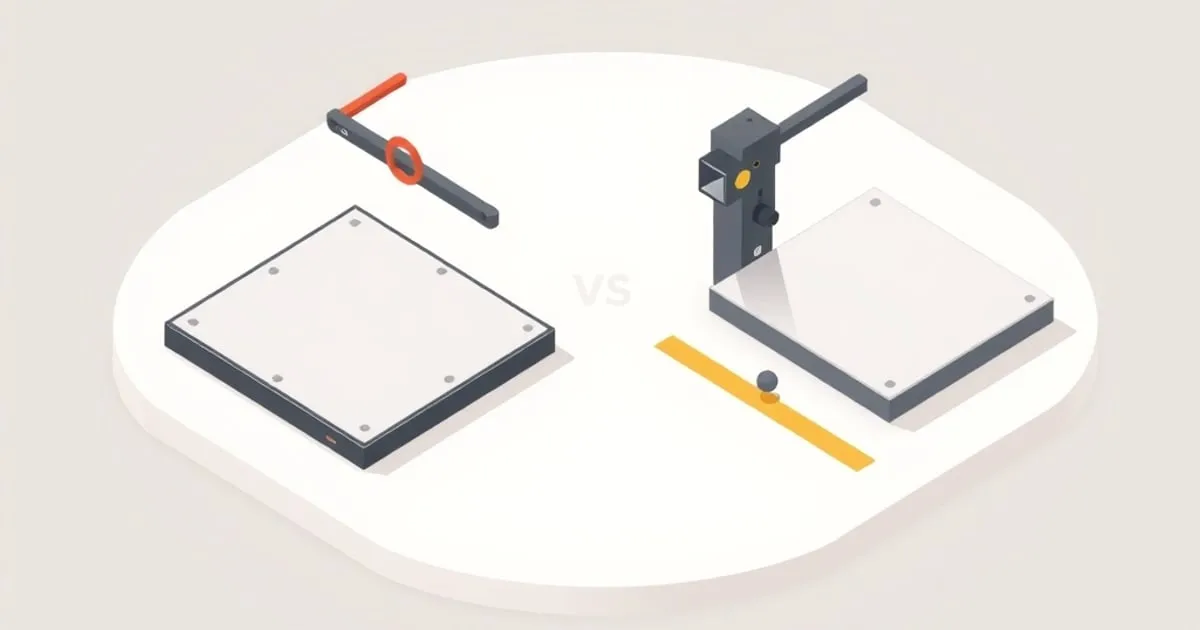
OrcaSlicer vs PrusaSlicer: Which Slicer Fits Your Workflow?
A practical comparison of OrcaSlicer and PrusaSlicer covering built-in calibration, printer compatibility, feature depth, and which one to choose for your
The orca slicer vs prusaslicer question has a clear answer once you understand where each tool focuses its engineering effort. Both are open-source, both share the same AGPL-3.0 license, and OrcaSlicer is literally built on top of PrusaSlicer’s codebase — forked through Bambu Studio. That shared lineage means the mental model, settings terminology, and profile format transfer directly between them. The practical differences are in calibration tooling, printer ecosystem breadth, and how each handles the gap between a factory default and a tuned print.
Calibration: The Biggest Functional Split
PrusaSlicer ships with no built-in calibration test generators. To run a pressure advance / linear advance sweep, you either download an external STL (Marlin’s official test model or a community pattern), import it into the slicer, and read the result manually — then type the K-value into your start G-code by hand. The Prusa Knowledge Base linear advance article ↗ documents this workflow clearly, but it’s a multi-step process that’s easy to get wrong.
OrcaSlicer builds the entire calibration suite directly into the slicer. From the Calibration menu you can generate:
- Pressure advance: pattern method (~5 min), tower method, or line method — each targets a different print time vs. precision tradeoff
- Flow rate: two-pass coarse + fine test; result saved directly into the filament profile
- Temperature tower: generated from the active filament profile’s temp range, G-code transitions inserted automatically per band
- Retraction distance: sweeps length across a single print
- Max volumetric speed: ramps flow rate to find the extruder’s ceiling
Results from the flow and PA tests feed back into the filament profile fields automatically. When you switch filament profiles, the tuned values load with it. That’s a different operational model than PrusaSlicer’s — closer to what you’d get from a dedicated calibration tool, but integrated so the results are usable without a separate tracking spreadsheet.
For Klipper users ↗, OrcaSlicer’s pressure advance pattern method generates the same visual readout as the official Klipper calibration print, with range presets for direct-drive vs. Bowden configurations. The values drop directly into your printer.cfg pressure_advance field or into the slicer’s filament profile to inject SET_PRESSURE_ADVANCE in start G-code.
This alone makes OrcaSlicer the better starting point for any printer you’re tuning from scratch — whether that’s a Voron you just built or a Creality you’re dialing in for a new filament type.
Printer Compatibility and Profile Ecosystem
PrusaSlicer’s built-in vendor profiles focus on Prusa hardware (MK-series, XL, MINI) with generic RepRap/Marlin templates for everything else. The setup wizard has expanded over the years, but if you’re running a VzBot, RatRig V-Core, or a Creality Ender variant with a modified hotend, you’re starting from a generic profile and building manually.
OrcaSlicer explicitly targets a broader hardware list in its own description: Bambu Lab, Prusa, Voron, VzBot, RatRig, Creality, and others are all represented with community-contributed profiles maintained in the OrcaSlicer repository ↗. These profiles include printer-specific pressure advance ranges, bed mesh settings, and speed recommendations appropriate to each machine’s motion system.
For Bambu Lab printers specifically, OrcaSlicer provides the same AMS color management and per-filament overrides as Bambu Studio, but without the closed-ecosystem lock-in. You can modify profiles, export G-code for offline inspection, and run the slicer without a cloud account.
Network printing support in OrcaSlicer covers Klipper (Moonraker API), PrusaLink, OctoPrint, and Bambu LAN mode. PrusaSlicer covers PrusaLink and OctoPrint. Worth noting: network-connected printers on any platform expose a small attack surface — firmware update endpoints, unauthenticated Moonraker APIs, and similar issues are real on Klipper-based setups. Techsentinel.news ↗ covers connected-device firmware vulnerabilities if you’re running a printer farm or public-facing Klipper instance.
Feature Depth and Settings Quality
PrusaSlicer’s edge is documentation and tooltip depth. Nearly every setting has an inline explanation of what it controls and why you’d change it — not just what the parameter is, but the tradeoff you’re making. For someone learning slicing concepts, that’s genuinely useful. The defaults are also conservative in a way that tends to produce correct-if-slow prints on most hardware.
OrcaSlicer adds features not yet in PrusaSlicer at the time of this writing:
- Per-object settings overrides: change infill pattern, wall count, or layer height on individual objects within the same plate without modifier meshes
- Sandwich / Inner-Outer-Inner wall order: places outer wall perimeters after inner walls are already supported, which reduces dimensional deviation on small features
- Scarf seams: a ramped seam entry that distributes the Z-seam artifact across a wider angle, reducing the visible blob
- Polyhole compensation: corrects hole geometry for FDM’s tendency to print circles undersized
Both slicers support Arachne (variable-width perimeter generation), organic/tree supports, and the layer height painter. Those originated in PrusaSlicer and moved downstream. The Arachne implementation in OrcaSlicer is the same core algorithm.
Which One to Use
OrcaSlicer is the better default for most home users and Etsy sellers running mixed hardware. The integrated calibration suite pays for itself the first time you swap to a new filament type — a 20-minute calibration run against manual K-factor hunting is not a close contest. The broader profile ecosystem and per-object overrides also make it the faster path from plate to finished part.
PrusaSlicer earns its place if you’re running Prusa hardware exclusively and want the best-supported defaults for that specific machine. The tooltip quality and documentation are genuinely better than OrcaSlicer’s, and the stable release cadence produces fewer mid-run surprises. If you’re teaching someone slicing from scratch on a Prusa MK4 or MINI+, PrusaSlicer’s explanatory text is a real teaching tool.
Both are free. There’s no barrier to running both simultaneously — profiles and concepts transfer directly.
Sources
- OrcaSlicer GitHub Repository ↗: Source code, release notes, and community printer profiles for OrcaSlicer. The README and wiki document all built-in calibration methods.
- PrusaSlicer GitHub Repository ↗: Source, issue tracker, and feature changelog for PrusaSlicer. Useful for tracking what’s shipping in each release vs. still in development.
- Prusa Knowledge Base: Linear Advance ↗: The official Prusa workflow for pressure advance / linear advance calibration — the manual alternative to OrcaSlicer’s built-in test generator.
- Klipper Pressure Advance Documentation ↗: Klipper’s reference for the
pressure_advanceparameter and how to run the official calibration print, which OrcaSlicer’s pattern test replicates.
Sources
Related

Best Infill Pattern for Strength: What the Research and Slicer Docs Actually Show
A pattern-by-pattern breakdown of which FDM infill options deliver the most mechanical strength — gyroid, cubic, honeycomb, grid, and concentric — with
Flow and Temperature Calibration, Done Properly
Flow rate and temperature are the two calibrations every other setting depends on. A step-by-step guide to flow-ratio tests, temperature towers, and the
Pressure Advance Tuning: How It Works and How to Calibrate It
Pressure advance fixes corner bulges and seam blobs no flow tweak can. A practical guide to tuning it in OrcaSlicer, Klipper, and Marlin with expected values.