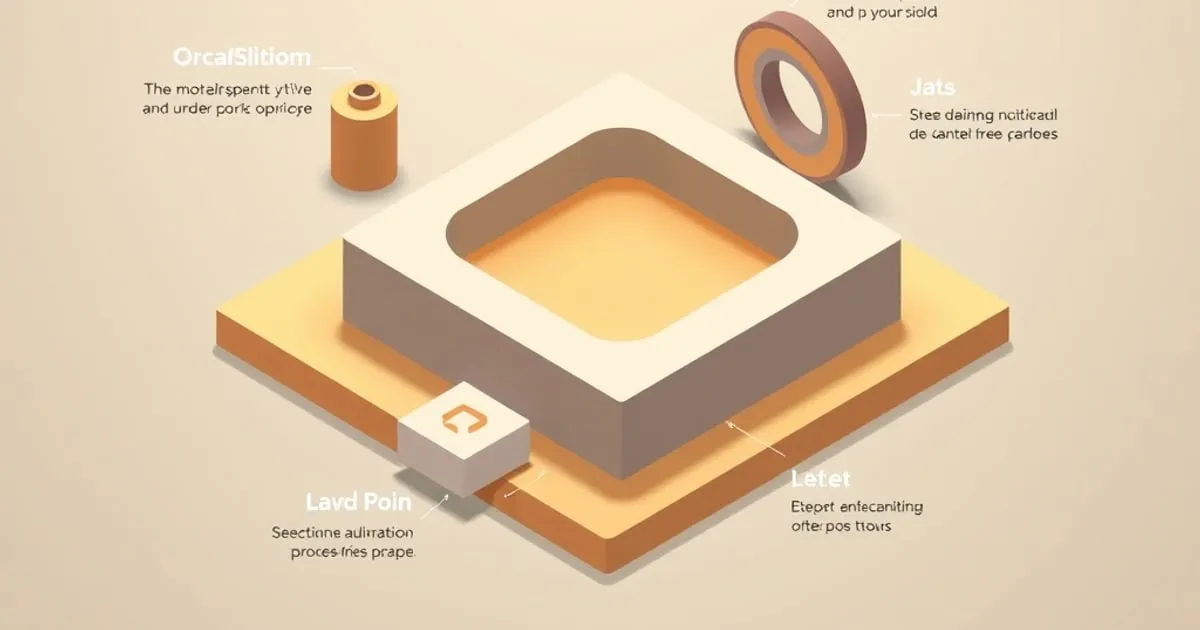
OrcaSlicer Features Worth Knowing
OrcaSlicer is a PrusaSlicer/Bambu fork that adds genuinely useful tooling on top of a familiar base. The features that actually change a workflow — the calibration suite, per-object settings, flow dynamics, and more.
OrcaSlicer’s pitch isn’t “a different slicer” — it’s “the Bambu Studio engine, plus the tools you’d otherwise cobble together from external test models and forum posts, built in.” That framing explains why people switch to it even on non-Bambu printers. It speaks the same settings language as PrusaSlicer and Bambu Studio, so nothing you already know is wasted, and it adds tooling that removes friction from the parts of slicing that are usually tedious.
Here are the features that actually change how you work, not the full changelog.
1. The built-in calibration suite
This is the headline feature and the main reason to use OrcaSlicer for tuning a printer. Under the Calibration menu it generates, and helps you interpret, the core tests:
- Flow ratio — a two-pass test (coarse then fine) that converges on the right extrusion multiplier faster than eyeballing a calibration cube.
- Pressure advance / linear advance — pattern and tower variants that reveal the value where corners and line starts stay crisp.
- Temperature tower — generated with per-band temperature G-code inserted automatically.
- Retraction test — sweeps retraction distance to find the stringing threshold.
- Max volumetric speed — finds the real mm³/s ceiling of your hotend, which is the true cap on print speed.
Other slicers can do all of this with imported STLs and manual custom G-code; OrcaSlicer removes that setup entirely. The calibration workflow is covered end-to-end in the flow and temperature calibration guide.
2. Per-object and per-modifier settings
Right-click any object on the plate and override settings for that object only — different infill, walls, supports, or even layer height per part on the same plate. Add a modifier mesh and those overrides apply only inside the modifier volume.
Why it matters: you can print a strong bracket and a decorative trinket on one plate with appropriate settings for each, or reinforce just the bolt-hole region of a part with denser infill while keeping the rest light. This is the practical way to apply the “add walls where the load is” principle from the core settings guide without compromising the whole model.
3. Flow dynamics (pressure advance) calibration as a first-class workflow
OrcaSlicer treats pressure advance as something you measure and store per filament, not a number you copy from a forum. The flow-dynamics calibration produces a value tied to the filament profile, and the slicer applies it automatically. Crisp corners, clean seam starts, and reduced bulging at speed changes mostly come from getting this right — and it’s the calibration most people skip.
4. Precise wall ordering and seam control
OrcaSlicer exposes detailed wall-ordering options (inner/outer sequencing, and “inner-outer-inner” style orders) and a capable painted-seam tool. For surface-critical prints, the combination of inner-wall-first ordering and a manually painted seam is the reliable path to a clean exterior — the same conclusion reached in the seam placement guide, with the tooling to execute it cleanly.
5. Organic supports and Arachne, inherited and current
Because OrcaSlicer tracks both upstreams, it carries the modern Organic (tree) support implementation and the Arachne perimeter generator. These behave consistently with PrusaSlicer and Bambu Studio, so the tree supports and Arachne guidance applies directly here.
6. Broad community printer profiles
OrcaSlicer ships with a wide range of community-maintained printer profiles, not just one vendor’s machines. For an off-brand or older printer, there’s usually a usable profile in the box — a meaningful convenience over starting from a generic template.
7. Quality-of-life details that add up
- Plate-level G-code preview with rich color modes (speed, flow, layer time) for verifying settings claims before printing.
- Sequential printing helpers with collision visualization for one-object-at-a-time plates.
- Calibration results stored in the filament profile so a tuned filament stays tuned across projects.
- Frequent updates — useful, but see the caveat below.
The honest caveats
OrcaSlicer is a fast-moving community fork. Two practical consequences:
- Defaults shift between releases. A setting’s default value can change between versions. For production or reproducible work, pin a version and re-validate after upgrading rather than auto-updating mid-project.
- It’s not magic on bad hardware. The calibration suite measures your printer accurately; it can’t fix a worn nozzle, a clogged hotend, or a Bowden setup fighting TPU. Calibration tells you the truth, including unwelcome truths.
Neither is a reason to avoid it — just reasons to treat version pinning as part of the workflow.
Who should use it
- Tuning any printer from scratch: OrcaSlicer’s calibration suite is the lowest-friction option of the major slicers.
- Mixed plates with different requirements per object: per-object settings make this trivial.
- Non-Prusa, non-Bambu hardware: broad profiles plus a familiar engine.
- Already on PrusaSlicer and happy: the engine is shared; switch for the calibration suite specifically, not because PrusaSlicer is lacking as a reference.
The short version: OrcaSlicer is the calibration-and-workflow layer on top of an engine you may already know. If calibration friction is your pain point, it’s the strongest answer among the four major slicers.
Where to go next
For how OrcaSlicer fits against the other three, see the four-slicer comparison. If you’re coming from Cura, the Cura-to-OrcaSlicer migration guide maps the terminology.
For printer hardware context behind calibration, FDM Desk ↗ and PrintLabGuide ↗ go deeper.
Related
Pressure Advance Tuning: How It Works and How to Calibrate It
Pressure advance fixes corner bulges and seam blobs no flow tweak can. A practical guide to tuning it in OrcaSlicer, Klipper, and Marlin with expected values.
Flow and Temperature Calibration, Done Properly
Flow rate and temperature are the two calibrations every other setting depends on. A step-by-step guide to flow-ratio tests, temperature towers, and the order to run them in OrcaSlicer, PrusaSlicer, and Bambu Studio.

Migrating From Cura to OrcaSlicer Without Losing Your Mind
Cura and OrcaSlicer use different names for the same settings. A direct terminology map and a migration checklist so a Cura user can move to OrcaSlicer without re-learning slicing from scratch.