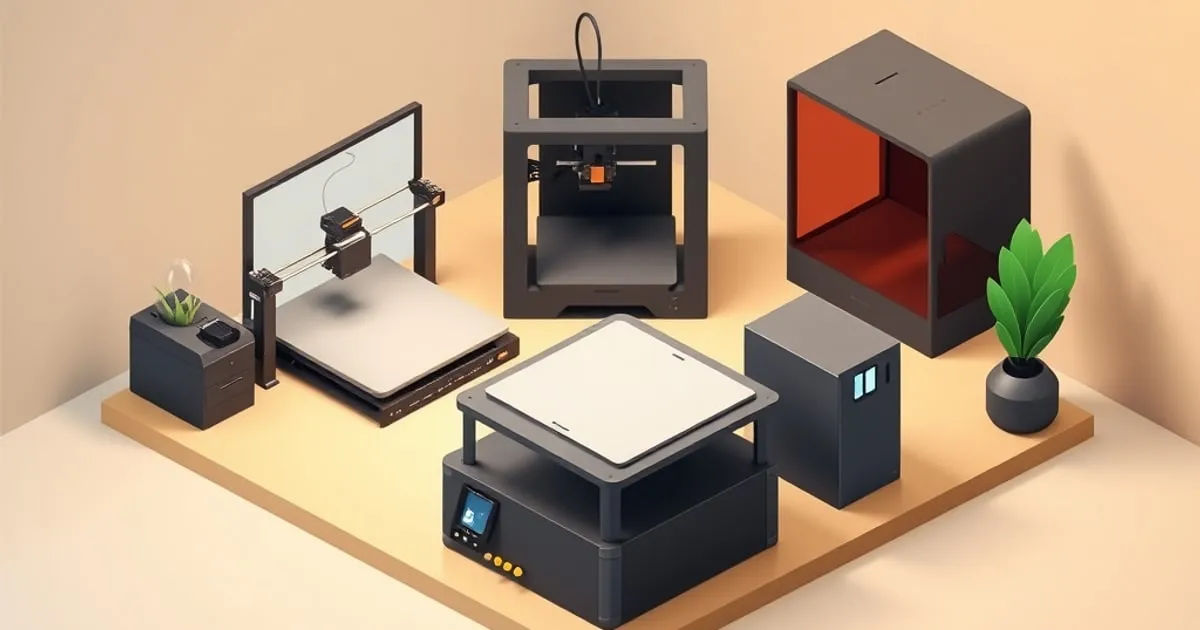
PrusaSlicer vs OrcaSlicer vs Bambu Studio vs Cura
Four slicers cover almost every FDM workflow in 2026. A practical comparison of how PrusaSlicer, OrcaSlicer, Bambu Studio, and Cura differ in lineage, calibration tooling, profiles, and where each one is the right default.
If you only ever read one thing about slicers, it should be this: three of the four major slicers are close relatives, and the fourth is the odd one out. Understanding that family tree explains almost every difference you’ll run into when you switch between them.
This is a comparison of the four slicers that cover the overwhelming majority of FDM printing in 2026 — PrusaSlicer, OrcaSlicer, Bambu Studio, and UltiMaker Cura — written from the perspective of what each one is actually good at, not which one “wins.”
The family tree
PrusaSlicer is itself a fork of the older Slic3r. Bambu Studio is a fork of PrusaSlicer. OrcaSlicer is a fork of Bambu Studio that pulls features back from PrusaSlicer. So:
- PrusaSlicer → Bambu Studio → OrcaSlicer share a settings model, terminology, and a profile format. A “wall loop” is a “wall loop” in all three; the slicing engine concepts (Arachne, Organic supports, the layer-height painter) transfer directly.
- Cura descends from a completely separate codebase. Its settings have different names, different defaults, and a different mental model. “Wall line count,” “Infill density,” and “Combing mode” are Cura terms with PrusaSlicer-family equivalents that don’t line up one-to-one.
This is why a settings guide can cover PrusaSlicer, Bambu Studio, and OrcaSlicer in one breath and then has to treat Cura separately. It’s not editorial laziness — the tools genuinely diverge.
PrusaSlicer: the reference
PrusaSlicer is the slicer with the clearest documentation and the most conservative, well-explained defaults in the ecosystem. Its tooltips frequently explain why a setting exists, not just what it does.
Strengths:
- Best-in-class documentation and in-app help.
- Stable Expert mode that exposes every setting without overwhelming the Simple/Advanced views.
- Strong vendor profiles for Prusa hardware and good generic profiles for everything else.
- Organic (tree) supports and the Arachne generator originated or matured here.
Where it’s the right default: anyone running Prusa hardware, and anyone who wants to understand settings — concepts learned here transfer cleanly to the forks. We use it as the reference slicer for explaining what a parameter actually does.
Weaker spots: no built-in calibration test suite (you import test models or use external generators), and machine integration with non-Prusa printers is functional but not deeply automated.
OrcaSlicer: the calibration workhorse
OrcaSlicer took the Bambu Studio base, kept the good UI work, and added an integrated calibration suite plus very broad printer-profile support. For tuning a printer from scratch, it has the least friction of the four.
Strengths:
- Built-in flow-rate, pressure-advance, temperature-tower, retraction, and max-volumetric-speed tests, generated and interpreted in-app.
- Broad community printer profiles, not limited to one vendor.
- Inherits Organic supports and Arachne from upstream.
Where it’s the right default: tuning any printer, especially a non-Bambu, non-Prusa machine; anyone who wants reproducible calibration without hunting down external test STLs.
Weaker spots: as a fast-moving community fork, releases change behavior more often than PrusaSlicer’s; occasionally a setting’s default shifts between versions. Pin a version for production work.
Bambu Studio: tight hardware integration
Bambu Studio is Bambu Lab’s slicer, optimized around their printers and the AMS multi-material system. Setting names and behavior largely mirror OrcaSlicer, which keeps cross-slicer guides consistent.
Strengths:
- Deep integration with Bambu hardware: device monitoring, AMS filament mapping, cloud and LAN workflows.
- Solid, opinionated defaults for Bambu machines that “just work” out of the box.
- Same Prusa-lineage engine, so concepts from PrusaSlicer/OrcaSlicer transfer.
Where it’s the right default: Bambu Lab printer owners, particularly anyone using AMS for multi-color or multi-material prints.
Weaker spots: most useful on Bambu hardware; using it for unrelated printers works but gives up its main advantage.
Cura: the wide-compatibility outlier
Cura has the largest installed base historically, an enormous profile library, and a plugin marketplace. It is the most different of the four.
Strengths:
- Huge library of printer and material profiles across many vendors.
- Marketplace plugins for niche workflows.
- Mature, heavily tested core for a wide range of hardware.
Where it’s the right default: printers that only ship Cura profiles, workflows that depend on a specific Cura plugin, or teams already standardized on it.
Weaker spots: its terminology and defaults diverge from the PrusaSlicer family, so guidance written for the other three needs translation. Some advanced features (variable-width walls, tree supports) exist but are configured differently and under different names.
A practical decision guide
| Situation | Recommended slicer |
|---|---|
| Prusa printer | PrusaSlicer |
| Bambu printer (esp. AMS) | Bambu Studio |
| Any other printer, want easy calibration | OrcaSlicer |
| Learning what settings mean | PrusaSlicer |
| Profile only exists for Cura | Cura |
| Want the same UI across many printers | OrcaSlicer |
There is no universally “best” slicer. The right one is dictated by your hardware, your need for built-in calibration, and whether you value documentation depth (PrusaSlicer) over an integrated test suite (OrcaSlicer).
The good news: because three of the four share an engine, learning one of PrusaSlicer/OrcaSlicer/Bambu Studio means you mostly know the other two. Budget separate learning time only for Cura.
Where to go next
For the settings that matter most once you’ve picked a slicer, start with the core quality settings guide. If you’re moving off Cura, the Cura-to-OrcaSlicer migration guide maps the terminology directly. For the calibration tests that make any of these slicers trustworthy, see the flow and temperature calibration guide.
For broader FDM printer and material context, FDM Desk ↗ and PrintLabGuide ↗ cover hardware and material testing in depth.
Related

Lightning Infill: How It Works and When to Use It
Lightning infill is the fastest infill pattern in modern slicers — but it's not a universal default. A breakdown of how it differs from gyroid, cubic, and grid, and where it's the right choice.
Seam Placement: How to Hide the Z-Seam on FDM Prints
Every FDM print has a seam where each layer starts and ends. A practical breakdown of the seam-placement options in PrusaSlicer, Bambu Studio, OrcaSlicer, and Cura — and which one you actually want.
Ironing: How to Get Glassy Flat Top Surfaces
Ironing smooths flat top surfaces by re-running the nozzle over them with a trickle of filament. How it works, the four settings that control it, and when it helps versus when it just wastes time, across PrusaSlicer, Bambu Studio, OrcaSlicer, and Cura.